Configure Linty Platform
Log in to the Linty web interface as an administrator.
Set Linty License Keys
To request license keys, please, send an email to contact@linty-services.com and provide the following:
The Server ID displayed on your Linty platform (Administration > System).
The version of your
linty-serverDocker image. Alternatively, if you are not running Linty via Docker, provide the version of the Linty plugin on your SonarQube platform (Administration > Marketplace > Plugins > Installed).
Once you receive the license keys, go to Administration > Configuration > Linty and enter:
The Linty license key in the Linty License Key field.
The Linty Ultra license key in the Linty Ultra License Key field (only if you have purchased Linty Ultra).
Create linty-scanner User
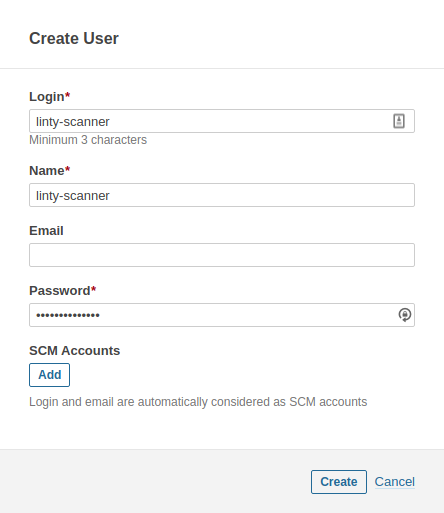
Go to Administration > Security > Users > Create User and create the linty-scanner user as below:
Login: linty-scanner
Name: linty-scanner
Email: Leave blank
Password: Whatever you like
Generate Token for linty-scanner User
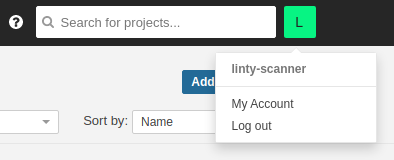
Log in as linty-scanner user and go to My Account (top right):
From the Security tab, generate a new token:
Name: Whatever you want
Type: User Token
Expires in: No expiration
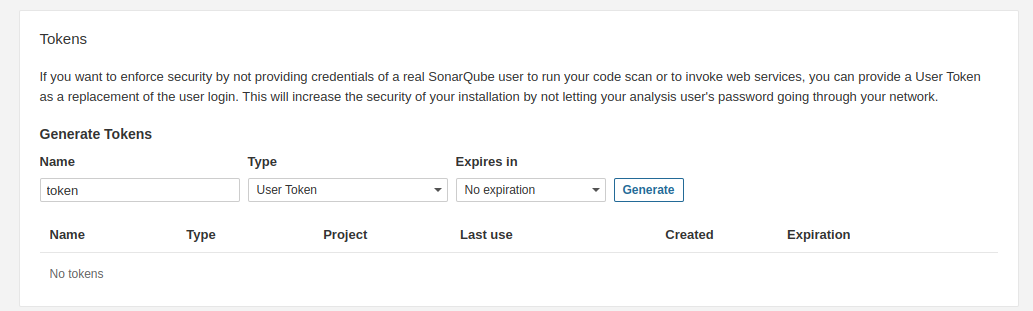
Copy it and keep it in a safe place. This token will be needed to scan you code with Linty.